Getting started
Tiquet keeps track of what your household has signed up for, what it pays and what expires, and reminds you before a deadline costs you money. You don't need an account or to connect your bank: your paperwork is enough.
How
- You need an iPhone or an iPad with iOS or iPadOS 27. From 2.0, the app is in Spanish, Catalan and English: it speaks your iPhone's language, and you can change Tiquet's alone in Settings › Apps › Tiquet › Language.
- To see it full before adding anything of your own, tap “Try with sample data” on the empty Home screen or in “Settings”. It's an invented household that doesn't touch your data; tap “Leave” to go back.
- Start with what matters most to you: an insurance policy or a subscription, from “Add” › “Contract”.
- Then the receipt for something with a warranty or a return period, and a statement from your bank so Tiquet can find what repeats.
- If you're coming from another iPhone, “Restore a backup” on the empty Home screen brings back your backup.
Tips
- Apple Intelligence is optional. Without it, Tiquet reads receipts with text recognition and rules, marks them for you to check, and “Ask” still answers how much went on what.
- With Apple Intelligence, Apple's model reads receipts and policies better and answers open questions, always on the device.
- Apple Intelligence doesn't speak Catalan yet: with Tiquet in Catalan, “Ask” and “The Month” answer in Spanish. And it only switches on with the iPhone in a language it understands, so a Catalan household gets it with the iPhone in Spanish and Tiquet in Catalan.
- From 2.0, households with years of statements move faster, and what you type in a field is saved as soon as you pause.
Questions
Do I have to create an account?
No. There's no Tiquet account and no password to remember.
Receipts, invoices and PDFs
Take a photo of the receipt or send it the invoice that came by email, and Tiquet notes the shop, the date, the amount and the items. The photo stays as proof even if the thermal paper fades.
How
- Tap “Add” and choose: “Camera” scans and straightens the paper, with several pages if the receipt is long; “Photos” takes up to 30 at once; “File” opens a PDF or an image; “By hand” is for when there's no paper.
- From Mail, Files or Photos, touch and hold the attachment, tap Share and choose Tiquet. It reads it when you open the app.
- Before saving, you see what it understood. If something doesn't add up, tap “Something read wrong? Correct it”.
- Anything that arrives in a batch or was read without Apple Intelligence carries the note “Saved without you checking it”. Compare it with the photo and tap “It's right”.
Tips
- You can share up to 20 files at once. From version 1.1 they're read in the order you send them.
- From 1.1, a shop's receipt has “Shop's website, for its icon”. You type it once and all its receipts and charges show the icon.
- If you save a repeated receipt by hand (same shop, date and amount), Tiquet asks you first.
- With Apple Pay, each payment can be noted by itself as a receipt: see “Apple Pay, noted by itself”.
Apple Pay, noted by itself
From version 1.2, each Apple Pay payment with your iPhone or Apple Watch is noted in Tiquet by itself, with its shop, its amount and its category. Your iPhone does it, with no bank connection. iOS asks you to switch it on yourself, once, in the Shortcuts app: it takes a minute.
How
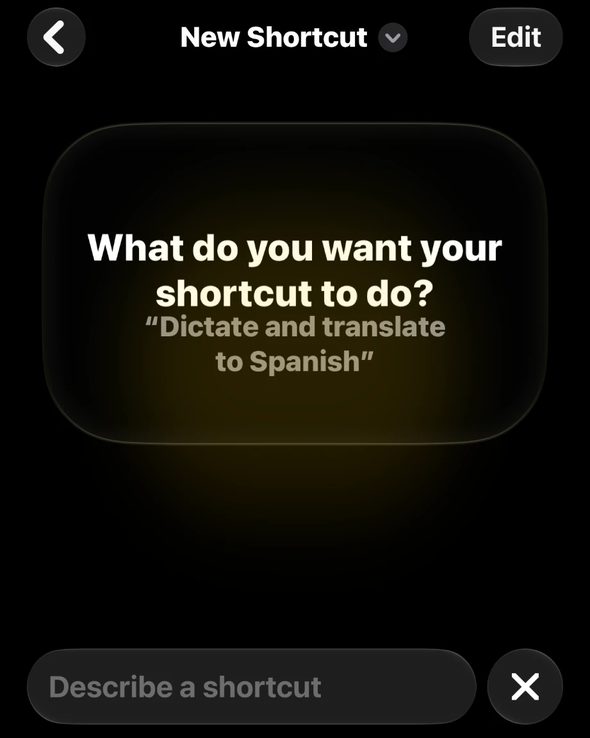
- Open the Shortcuts app, tap “+” at the bottom and then “Edit”, at the top: there's no need to describe the shortcut.
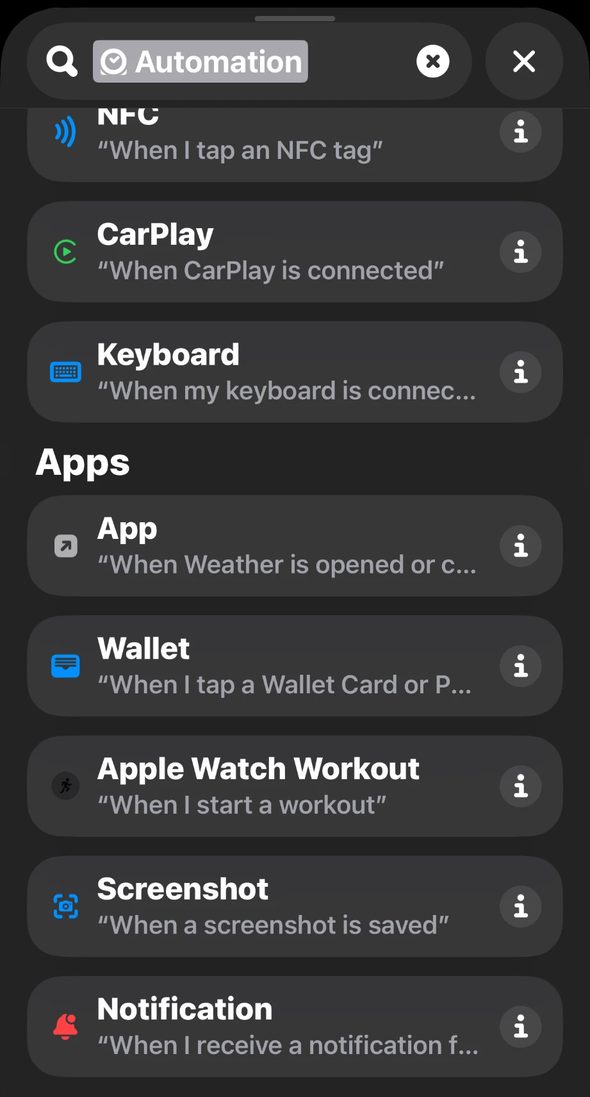
- Under the search field, tap “Automation” and choose “Wallet” (“When I tap a Wallet Card or Pass”).
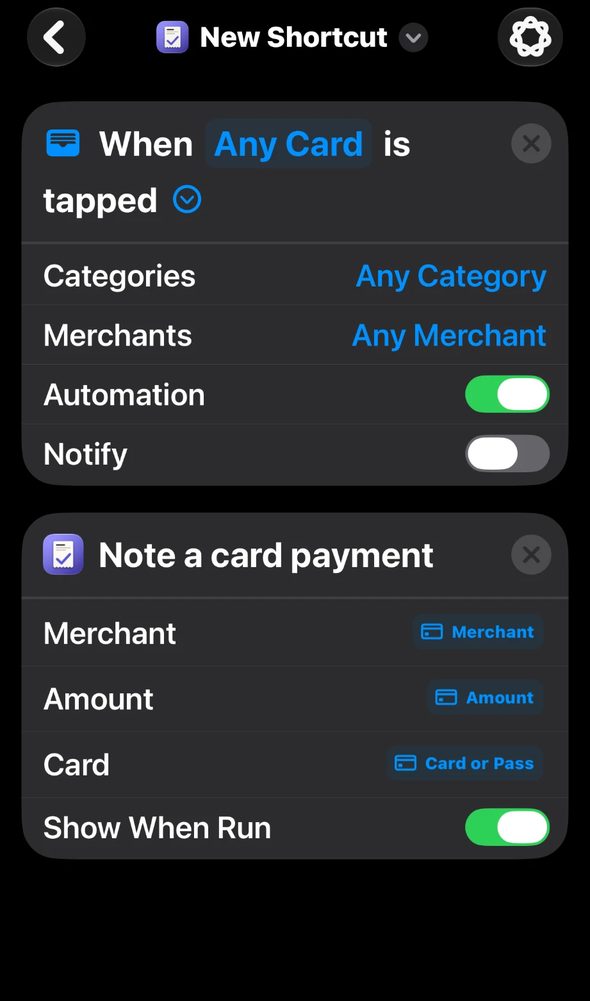
- Search for Tiquet and choose “Note a card payment”.
- Tap “Merchant”, then “Select Variable”, and choose “Merchant”. The same with “Amount” (choose “Amount”) and “Card” (choose “Card or Pass”).
- Leave “Automation” switched on in the first block and tap “<” to save. You can give it a name, such as “Tiquet · Apple Pay”.
- Pay with your iPhone: you'll see “Noted: … at … · category” and the receipt appears in Tiquet.
Tips
- The steps, whether it's working (“Working: the latest…”) and the “Note Apple Pay payments” switch are in “Settings” › “From your bank”. Switch it off and the automation stays in Shortcuts, but Tiquet notes nothing.
- From 1.3, if you pay by card and haven't set it up, “To do”, in “This week”, offers it; if you opened the steps and nothing has arrived three days later, it says so; and when the first payment arrives, it confirms it.
- When you import the statement, that payment is recognised: it isn't counted twice.
- If you scan the paper receipt later, it takes the payment's place, with its items.
- From 2.0, if the receipt's amount differs because it had a tip or a discount, Tiquet asks “Is this the ticket for a payment?”. With “Same payment” only the receipt stays, at the amount charged, and nothing is counted twice; with “They're different”, both stay.
- Since iOS 27 automations are made inside a new shortcut, from the “Automation” actions: there is no separate tab any more. With “Wallet” you can limit it to some cards, categories or merchants.
Questions
Does Tiquet see my card or my bank?
No. Shortcuts hands it only the shop, the amount and the name of the card you choose in the action. Nothing leaves your iPhone.
Why doesn't it switch on by itself?
iOS lets no app create automations: the person has to, once. That way you switch it on knowing what you're doing.
And what I pay with the physical card or by direct debit?
What you pay with Apple Pay is noted. The rest comes with the bank statement.
Returns and warranties
When something breaks or you're not happy with it, the hard part is knowing whether you're still in time. Tiquet takes the return and warranty deadlines from the receipt and reminds you before they close.
How
- Save the receipt for the purchase. On its card, “Your rights” tells you how long the legal warranty lasts and until when you can return it.
- The return period comes from the receipt or, if it isn't printed, from the policy of the big chains. For online purchases, the law gives you 14 days from delivery.
- For something you want to keep track of, like a phone or a bike, tap “Track as a thing”. If the receipt has several lines, open the item and tap “Track this item as a thing”: it takes its price, its photo and the return date with it.
- Warranties in force are together in “Contracts”, under “Warranties in force”, with the nearest at the top.
Tips
- It reminds you 3 days and 1 day before a return closes, and a month before a thing's warranty ends.
- In Spain the legal warranty is 3 years for purchases made since 2022. Claim from the seller, not only the manufacturer.
- “Your rights, with sources” says where each date comes from. It's information, not legal advice.
Questions
Why doesn't my supermarket receipt have a warranty?
Tiquet only adds a warranty when the paper mentions one and the purchase can have one: never for food, fuel or a meal out.
Bank statements
Tiquet doesn't connect to your bank. You download your transactions as a file and give it to Tiquet, and from that it sees what you pay each month, what you've paid each company so far and what repeats.
How
- On your bank's website or app, export your transactions as Excel, CSV or PDF: it needs a date, a description and an amount. If you use a credit card, export its statement too.
- Open it with “Add” › “File”, or share it with Tiquet.
- It tells you how many lines are new; nothing is added twice. If the file has no year, it asks for the “Year of the latest payment”.
- Before saving, “How Tiquet read this file” shows which column is the date, the description and the amount, with three lines to check. If your bank writes purchases as positive numbers, Tiquet turns them and says so with “The file shows spending as positive”; if they come out the wrong way round, change that switch: it remembers that for that bank.
- From 1.2: if Tiquet doesn't know the columns, or read them wrong, tap “Choose the columns” (“Not read right? Choose the columns” once it has read it): you see each column with its first values and say which is the date, the concept, the amount (or money out and in), the balance, the currency or a D/H sign column. It remembers them for that bank's next files.
- “What keeps charging” lists the companies that charge you at a steady rhythm. The ones you switch on become contracts.
Tips
- Transfers, Bizum and cash are saved, but don't count as spending. Card numbers are cut to their last four digits.
- From 1.1 you can send several statements together and they're imported one after another. In 1.0, one at a time.
- With “Remind me of what only I can do”, in “Settings” › “Reminders”, on the 3rd of the month it reminds you to bring in the previous month if it's missing. From 1.2 it looks bank by bank and card by card, names what's missing and shows it in “Needs attention” too, so Watch doesn't miss anything.
- With Plus: “In and out” compares what comes in with what goes out.
Questions
Which banks work?
Nearly all. Tiquet finds the columns by their titles or, if there are none, by what they hold; it understands debits and credits in two columns and PDF statements, and knows the layouts of BBVA, Banc Sabadell, ING, Revolut and Andbank. If yours still isn't read right, “Send us the file's shape” prepares an email with none of your data: every digit becomes a 9 and every word its length. From 1.2 it also reads credit card PDF statements that split a movement over several lines, leaves the “previous balance” out and doesn't count the payment that settles the card as spending.
Contracts and insurance
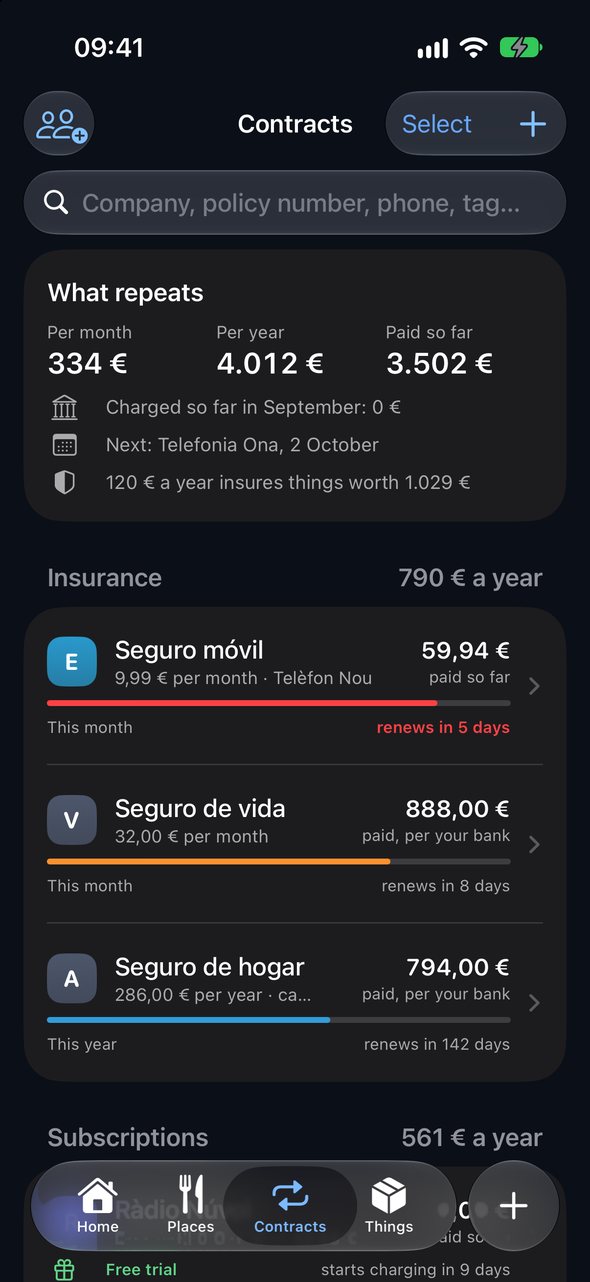
Each insurance policy, subscription or household bill as a card: what it costs, what you've paid so far, when it renews, until when you can cancel it and who to call the day something happens.
How
- Tap “Add” › “Contract”, or the + on the “Contracts” tab. Type who it's with and what it costs.
- Tap “Attach the policy or contract” and scan the paper or choose a photo or a PDF. Tiquet reads the number, premium, cover, insured people and claims phone number, and only fills in what you hadn't typed.
- From 2.0, on an insurance policy it also reads the “Policyholder” (name, ID document, phone and email), the insured address and the contents sum, when the policy prints them. A DNI, NIE or CIF is only kept if its control letter or digit is right. With Apple Intelligence the model reads them and Tiquet checks them against the paper; without it, rules read the policy's own headings, such as Tomador or Situación del riesgo. It only fills in what is empty.
- From 2.1, on home insurance it also reads the building sum (“Building insured for”), and long policies read better.
- With imported statements, look at “In your bank, without a card yet” in “Contracts”: one tap creates the card for a repeating charge.
- For a phone paid in instalments, set the “Number of payments”. For a free trial, switch on “Free trial” and choose when it “Starts charging”.
- From 2.0, an insurance policy, an extended warranty or a financing plan can belong to one of your things: under “What it covers”, choose “The thing it is for” (the car's insurance, the car). What it costs then shows on that thing's card.
Tips
- An insurance policy comes with 30 days' notice: in Spain you can object to the renewal a month in advance. Change it if your contract says otherwise.
- On a yearly contract, a month before the last day to say no you get “a good moment to compare”, with the increase if your bank shows it. After that, reminders 7 days and 1 day before.
- “Call to claim” and “Copy the policy number” are at the top of the card.
- Tiquet never keeps passwords: you only note where the login is.
- On a home policy, “What it insures” keeps your things with their photos and prices: see “The home insurance inventory”.
The home insurance inventory
The day you're burgled or the house floods, the insurer and the police ask for the same thing: what you had, what it looked like and what it cost. Tiquet keeps it now, thing by thing, on your home policy, and makes the PDF to hand over.
How
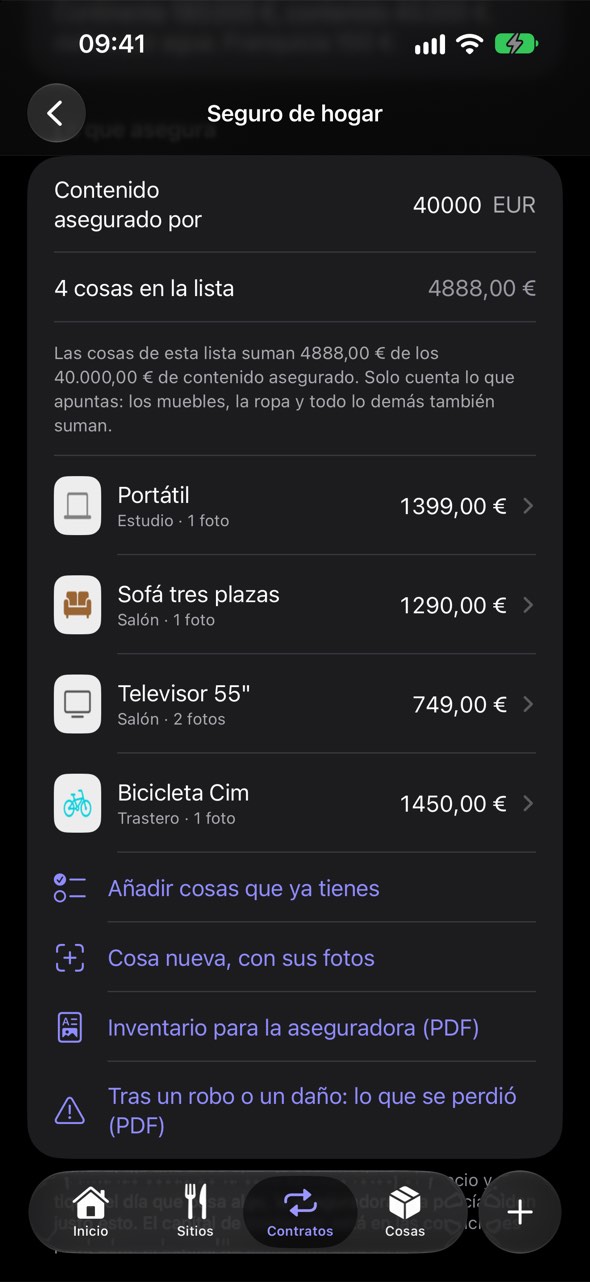
- Open your home insurance in “Contracts”. Under “What it insures”, tap “Add things you already have” to tick the ones already in “Things”, or “New thing, with its photos” to add one from there.
- On each thing, take as many photos as it takes (front, back, inside, the box), fill in “Where it is at home (living room, kitchen…)” and its price. If it came from a receipt, the receipt stays as proof.
- Type the contents sum in “Contents insured for”: it's in your policy's particular conditions. If you attached the policy and it's printed there, Tiquet has already read it.
- With Plus, Tiquet compares what your things add up to with that sum. If you list more than is insured, it warns you with “More than the contents sum”, tells you the share a claim could be paid at if the proportional rule applies (art. 30 of Spain's Insurance Contract Act) and what to ask your insurer: whether the sum fits and whether your policy waives that rule.
- With Plus, “Inventory for the insurer (PDF)” makes the document: your details and the policy's, the list with a picture of each thing and the total, a card per thing with all its photos, and the declaration with lines for your signature, the place and the date.
- If something has already happened, “After a theft or damage: what was lost (PDF)”: choose what happened (theft, water damage, fire or other damage), the date of the loss and the things affected. The same list works for the police report.
Tips
- Your “Policyholder” details go at the top of the PDF: name, ID document, insured address, phone and email. They're saved on the policy; leave out what you'd rather not give.
- Only what you list counts: furniture, clothes and everything else add up too. That's why Tiquet does the sum but doesn't tell you whether you're properly insured.
- Tiquet recommends no sums, covers or companies: it gives you the arithmetic and the question for your insurer.
- Listing your things on the policy is free; the comparison with the contents sum and the PDFs come with Plus. The PDF is made on the iPhone and goes only where you send it.
Questions
What if something has no receipt?
List it anyway, with its photos and what you paid. The PDF says what proof there is for each thing: the receipt, the photos, the serial number label or the warranty.
Where to spend less
Price rises don't announce themselves: the insurance that costs a bit more every year, the subscription you no longer use. Tiquet puts your own numbers side by side and tells you which question to ask.
How
- Import statements covering at least a year: a rise shows up by comparing the same charge in different years.
- On “Home”, open the “Spend less” card: it says how much a year goes through what is worth a look.
- Each finding says what was seen, why it may matter, what you could do and how much money goes through there each year, as an estimate.
- Tap “See the charges” to see every payment behind it, year by year. Once you've reviewed it, tap “I've looked at it”.
Tips
- It looks for seven things: a contract that has gone up, protection that has already cost a lot compared with what it protects, a paid warranty while the legal one still applies, bank fees, subscriptions older than a year, very frequent tolls or parking and, from 2.0, insurance that costs 10 % or more a year of what the thing it protects is worth today.
- Tiquet never recommends a company, a cover or a cancellation. It doesn't know market prices: it gives you your figures and the question.
- A contract's rise also shows for free on its card, under “Price of each charge, year by year”.
- From 1.1, “The basket” does the same with supermarket prices.
If something happens to me
If tomorrow you're not there to explain it, does your partner know what insurance you have, with whom and what number to call? Tiquet prepares those papers now, while all is well.
How
- From 1.2, when something happens: “Who do I call?” in “Contracts” (or ask Siri “Who do I call in Tiquet”) shows your insurance by what happened (home, car, health, phone…) with the company, the policy number and a button to call the claims line.
- In “Contracts”, tap “Share” at the top, or go to “Settings” › “Share with your household”.
- Choose “Household sheet (PDF)” or “Household sheet, with prices”. It's made on the device.
- Print it or send it to someone you trust, and keep it where it can be found.
- So your partner has the same in their Tiquet, tap “Share with your household” and send them the household file by AirDrop. When they open it, their Tiquet adds what's missing and updates what you changed afterwards.
Tips
- The sheet lists each insurance policy and contract: company, policy number, who is insured, what it covers, the phone number to make a claim, the contact, where the login is kept, when it renews and whether the policy is in Tiquet. Then, what's under warranty and the documents that expire.
- It never includes passwords or your document numbers. Prices appear only in the version with prices.
- The household file carries contracts, insurance with its policies, and warranties: no receipts and no bank data. It isn't encrypted and doesn't update itself, so send it again when you change something.
- From 1.2, if you change a contract after sending the household file, “Contracts” tells you: “The household file is out of date”, and you send it again with “Send it again”.
Watch: anything strange?
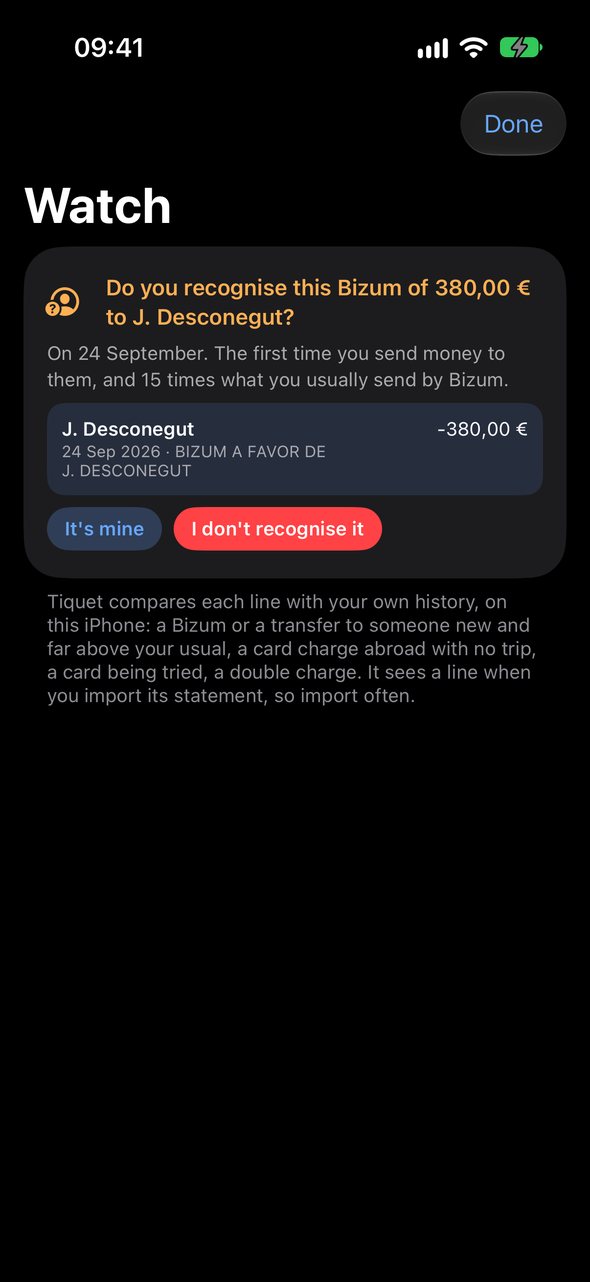
A Bizum you didn't make or a double charge is easier to spot with your household's history alongside. Watch compares each transaction in your statements with what you usually do and asks whether you recognise it.
How
- Import your statements. Watch checks the last 120 days on the device, with rules and no AI.
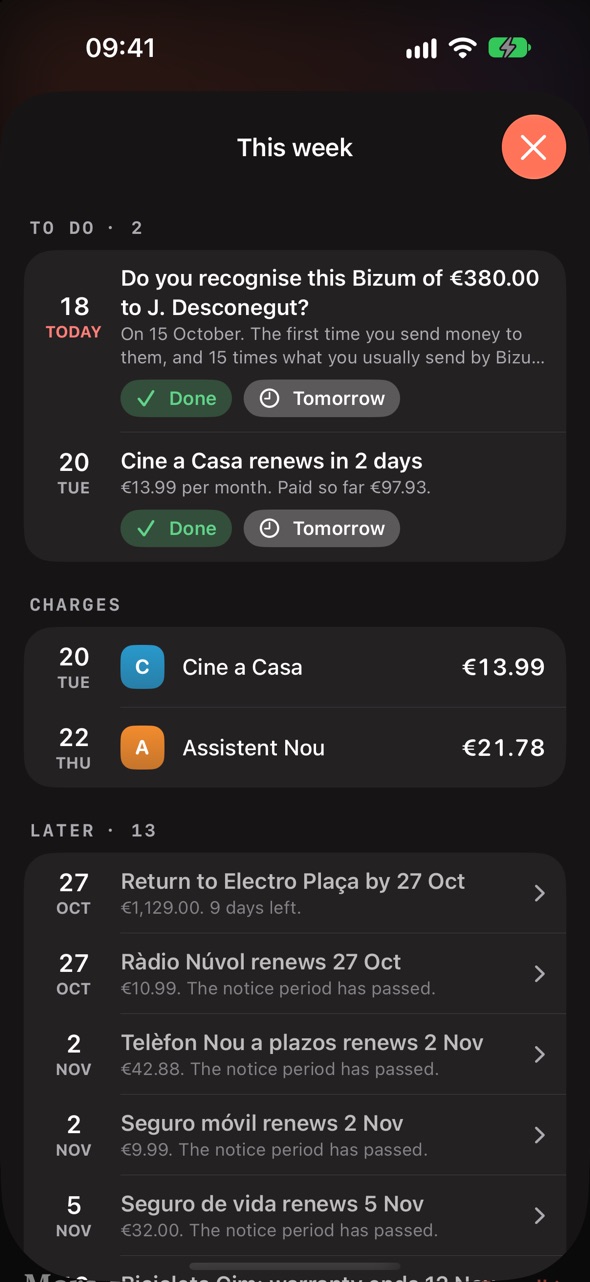
- Whatever it finds appears on the “Watch” card on “Home” and heads “To do”, in “This week”. The full screen is in “From your bank” › “Watch: anything strange?”.
- If you recognise it, tap “It's mine” and Tiquet learns it on all your devices. For several at once, “All are mine”.
- With “I don't recognise it”, it tells you what to do: call the bank and block the card, ask for the money back, report it and change your password.
Tips
- Six signals: a large Bizum to someone new; several Bizum payments on the same day to new people; a transfer to an account never seen before; a charge in another currency with no trip around it; a tiny online charge followed by a bigger one; and a double charge.
- For a payment you didn't authorise you have up to 13 months to tell your bank, but the sooner the better.
- Tiquet doesn't contact anyone, not even your bank.
Questions
Does it warn me as soon as something happens?
No. It only sees a transaction when you import its statement, so it always comes afterwards. It adds to your bank's alerts; it doesn't replace them.
Places: restaurants and bars
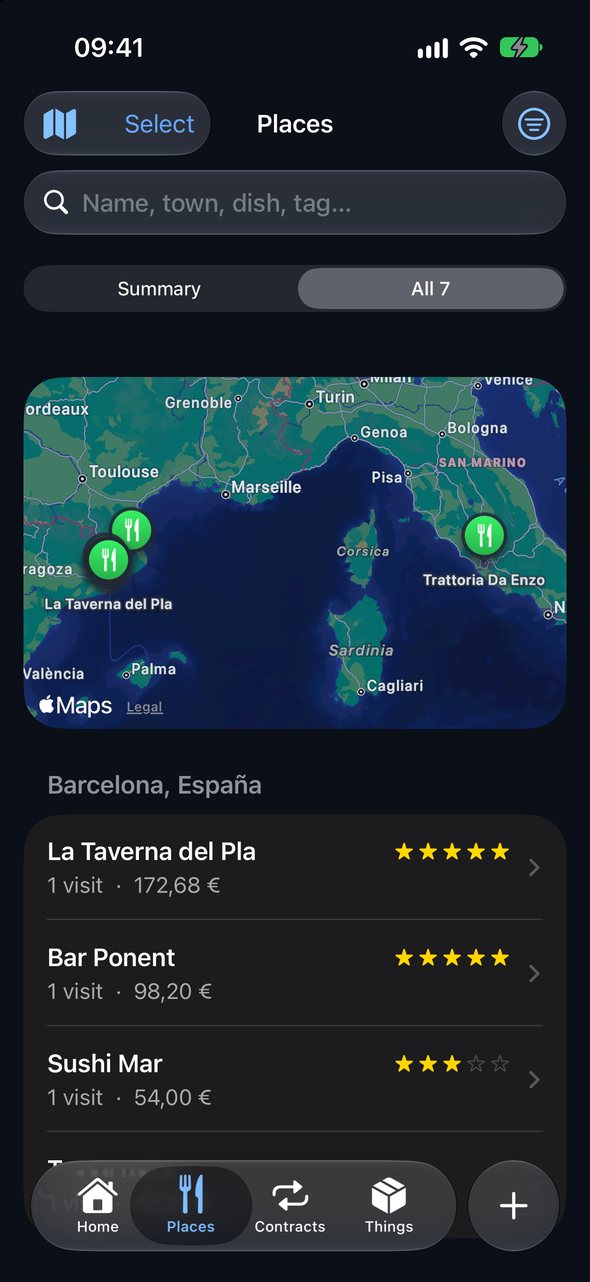
Your restaurant receipts become your own map: where you ate, what you ordered, what you loved and where to go back to. No reviews to write: the receipt already says the dish and the price.
How
- Save the receipt from a restaurant or a bar and it goes to “Places”, on its place's card. “I'm here now” puts it on the map with your location.
- On the receipt, give stars under “The place” (they count for every visit) and open each dish in “What you had” to answer “Would you order it again?” and add “Photos of the dish”.
- The “Summary” in “Places” shows “Your regulars”, the “Trips” it detects on its own and what you have “Near home”.
- Each place gathers its visits, what they cost, the dishes “Worth coming back for”, its phone number, “Book or see the menu” and “Open in Maps”.
- With Plus, “Bring them to Places” brings in the restaurants from your statements and looks them up in Apple Maps.
Tips
- Ask about a town or a region: “Which places did I like in Cantabria?”. Tiquet looks that name up in Apple Maps to place it; this question needs Apple Intelligence.
- “Where did I love the patatas bravas?” is answered without Apple Intelligence, from the stars you gave that dish.
- If a place shows up under two names, use “Same place as another…”.
- From 2.0, you can paste a Google Maps or Apple Maps link into the address of a place or a receipt: Tiquet replaces it with the address.
The basket and the shopping list
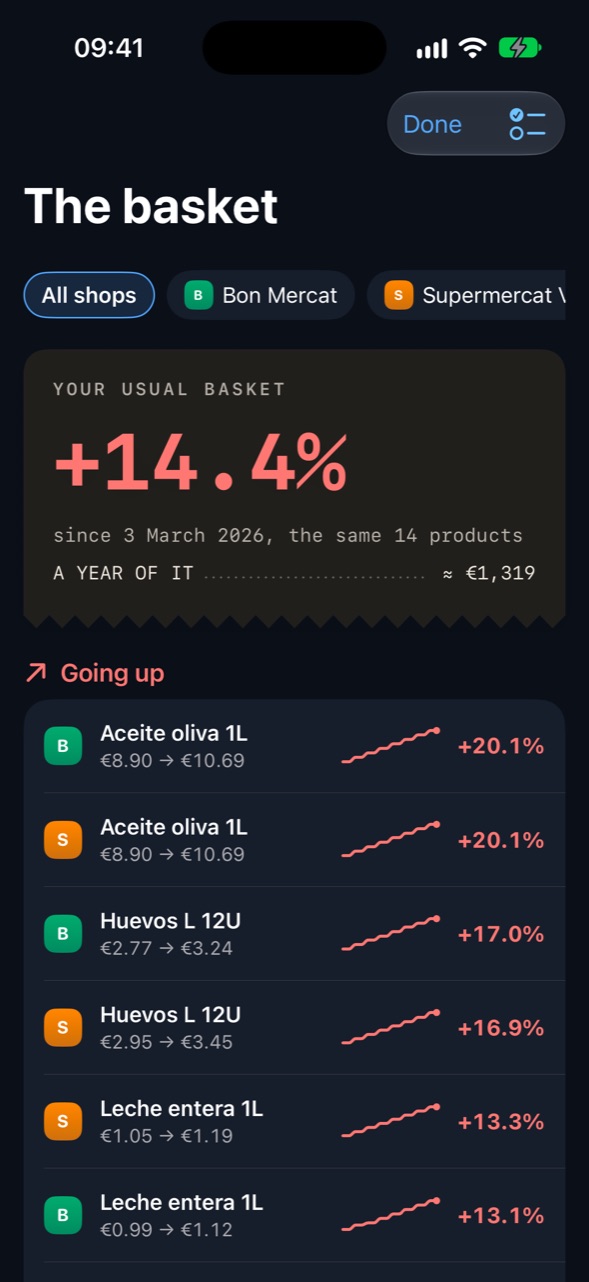
Each supermarket receipt keeps its items with their prices. Tiquet compares the same thing at the same shop, tells you how much your usual basket has gone up and helps you remember what you need to buy.
How
- Save your supermarket receipts. With two from the same shop with the same items, it can already compare.
- On “Home”, “The basket” (in “More of your home” or in “All of Tiquet”) opens the basket: what's “Going up”, what's “Going down” and what's “Cheaper at your other shops”.
- A product shows every price you paid, per unit or per kilo. Anything misread goes to “Prices that look misread” and doesn't count: open its receipt and correct the line.
- In the “Shopping list”, type three letters and it suggests what you've bought before, with its shop and its last price. It also suggests what's due to restock.
- In the shop, tap each item to tick it off; the screen stays on while you use it. When you're done, “Clear ticked”.
Tips
- The basket comes with Plus, alongside “Where to spend less”. The shopping list is free.
- From 2.1, “All your products” shows every product you've bought, with search.
- Add the “Shopping list” widget to your Home Screen and tick things off from there as you pick them up, without opening the app.
- Say “Shopping list in Tiquet” to Siri, or type “make me a shopping list” in “Ask”: it works without Apple Intelligence.
- The list is kept on this device and doesn't sync through iCloud.
Ask
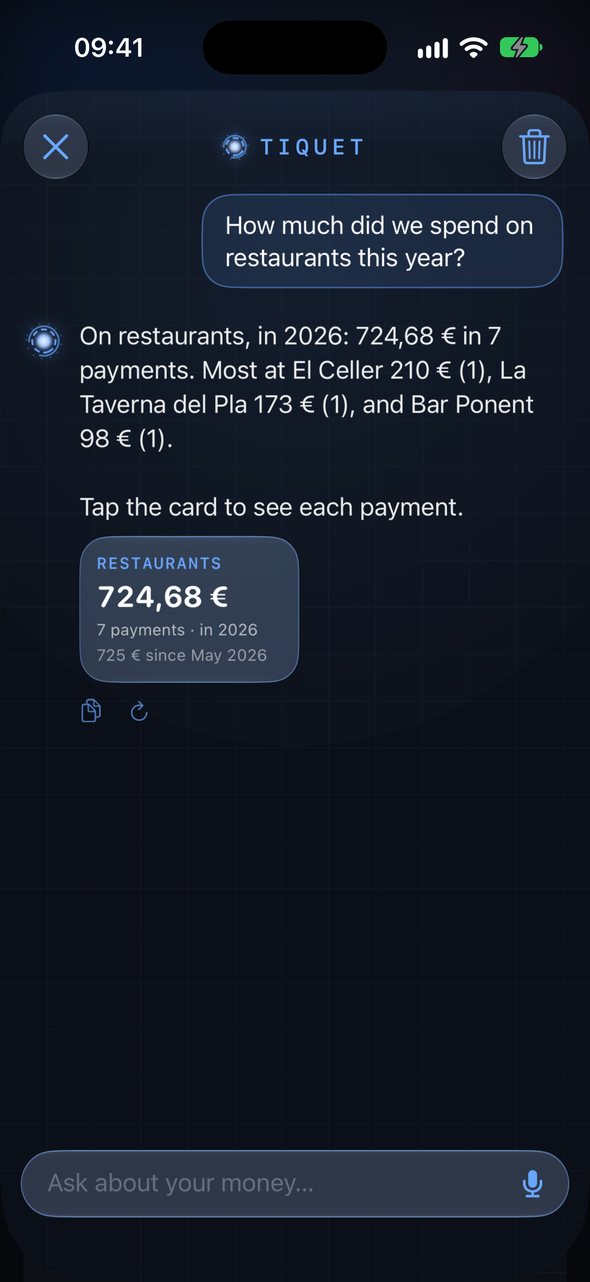
Ask in your own words and Tiquet answers with your receipts, statements and contracts. The app works out the figures; Apple's model only explains them, and everything happens on the device.
How
- Tap “Ask Tiquet” at the top of “Home” and type, or tap the microphone to dictate.
- To start, tap an idea: “How much on groceries this month?” or “What can I still return?”.
- Below the answer, cards show the payments behind it. Tap one to see them.
- If you ask for a change, like adding stars or changing the budget, you see the before and after. Nothing changes until you tap “Confirm”, and it can be undone.
- To follow on, start with “and”: “And last year?”.
Tips
- Without Apple Intelligence, the app answers on its own how much went on something, at a shop or under a tag (“How much did the trip to Rome cost us?”), where you had a dish and when a contract's next payment is due.
- “What can I still return?” and “What is still under warranty?” are answered by the app straight away, with everything still open, the most urgent first.
- With Apple Intelligence, it also answers about places near you or in a region, and takes “dinner Can Pere 42 yesterday” to create a receipt you check before saving.
- Free gives you 5 questions a day on each device, about what's free in the app. With Plus, there's no limit.
- In discreet mode, each answer waits behind “Amounts hidden. Show this answer”.
Home and what's coming
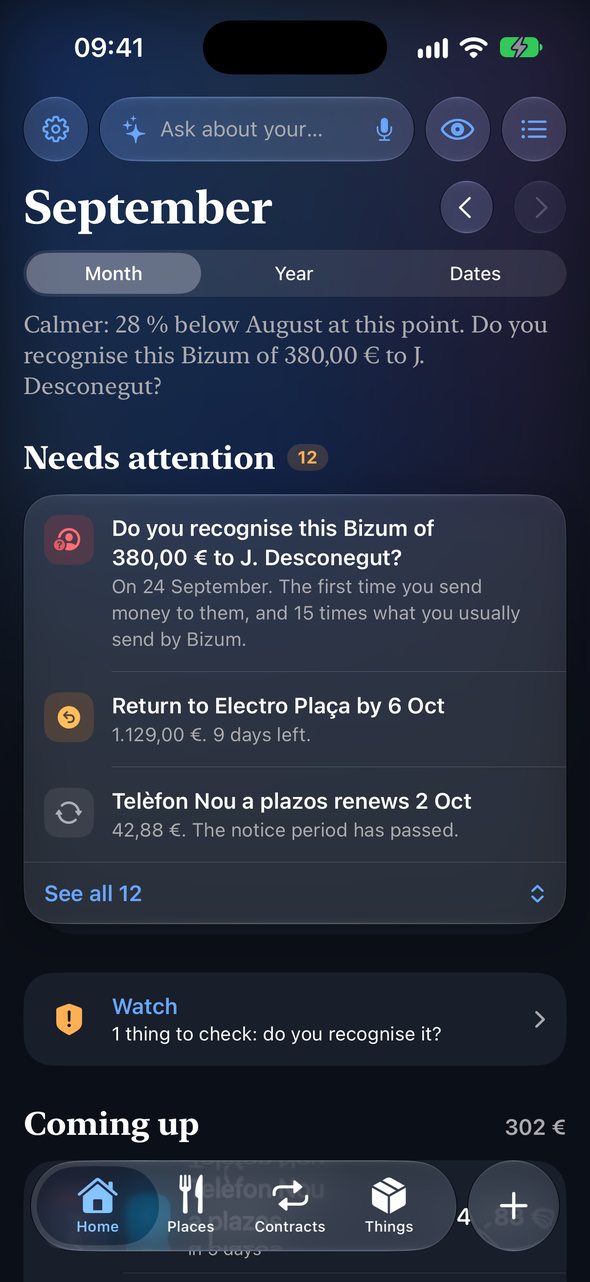
When you open the app, “Home” tells you about today at the top and the month as you scroll: what's charged this week, what you have to do and how each part of your home is going. Outside the app, the widgets and Siri tell you without opening it.
How
- From 2.1, at the top are the month, the grid button for “All of Tiquet” and “Settings”. Below, “Ask Tiquet”, the whole width, with an example question that keeps changing.
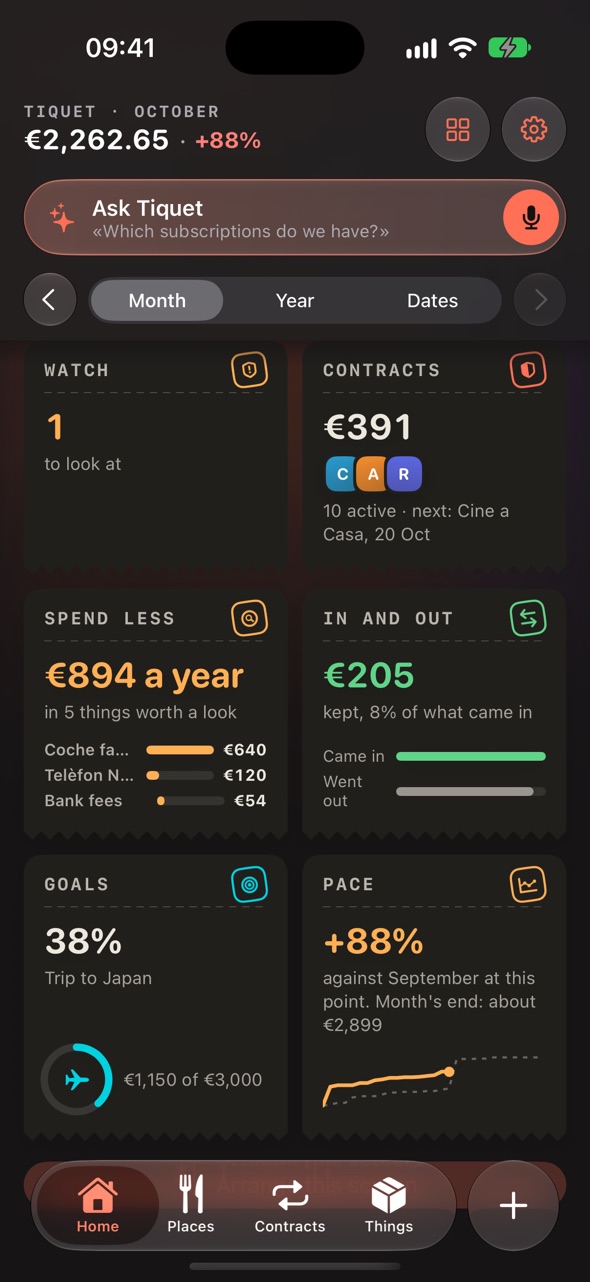
- Choose “Month”, “Year” or “Dates”; the arrows on either side step to the period before or after. All of Home follows that period.
- The month's ticket adds up what was spent by group, like a real receipt. Tap a group for its report. Touch and hold the total to hide the amounts; hold it again to show them.
- “This week” shows each day with its charges. Tap it to see what you have “To do”, with “Done” and “Tomorrow” under each notice, the week's “Charges” and what comes “Later”.
- Scrolling down, the month in small cards, each with its figure and its drawing: “Watch”, “Contracts”, “Spend less”, “In and out”, “Goals”, “Pace”… Tap one to go in. The rest are in “More of your home”, which slides sideways.
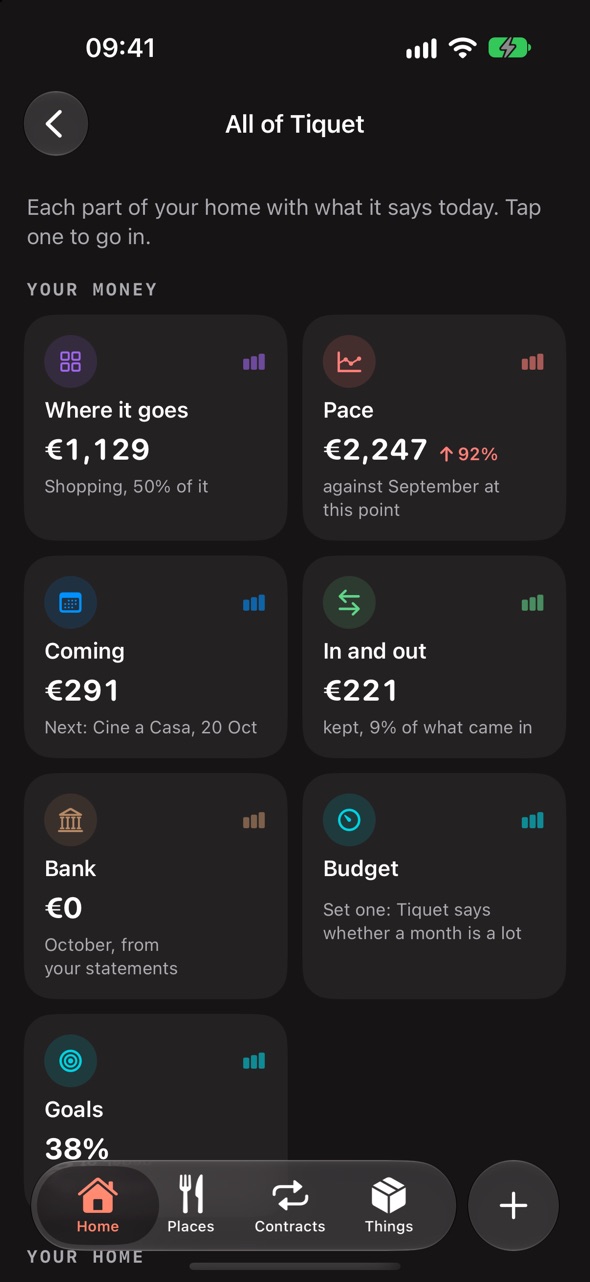
- “All of Tiquet” gathers every part of your home in a grid, with what it says today, including what you've hidden from Home. Tap one to go in.
- “Pace” and “Budget” explain what you see, and the budget changes from its own page.
- With Plus, “Where this is heading: Horizon”, in “Pace”, turns the screen and opens “Horizon”: what you've spent, where the month is heading and what's coming. “What if I drop…” switches off a contract and redraws the year. Turning the iPhone sideways opens it too.
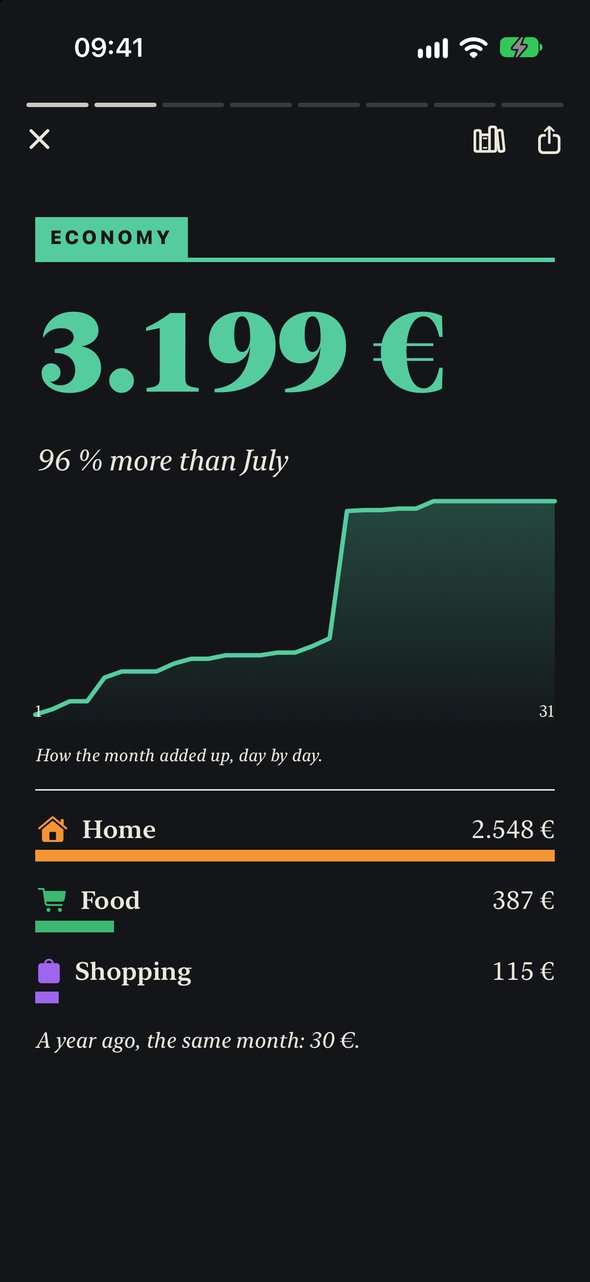
- With Plus, “What's coming” shows twelve months, charge by charge, and each forecast says what it's based on. “The Month” brings out an issue for each finished month, like a household newspaper, to share as a PDF.
- “Arrange this screen”, at the bottom of “All of Tiquet”, changes the order of the parts or hides the ones you don't use: up to six go to the month as cards, the rest to “More of your home”.
Tips
- Prefer the Home you had, one long page with “Needs attention” at the top? Switch off “Home on tickets” in “Settings” › “Look”. Nothing is lost: both show the same.
- As you scroll, a band at the top keeps the month's total; tap it to go back to the top.
- From 2.1, with large text, figures and buttons no longer break across lines, and thousands are always marked.
- Widgets: “This month”, “Next charge”, “Insurance at hand”, “Good places near you” and “Shopping list”. The “Add a receipt” control goes in Control Centre, on the Lock Screen or on the Action button.
- Ask Siri “When does home insurance renew in Tiquet?” or “How is my month going in Tiquet?”.
- From 1.3, in lists with swipe actions (“Needs attention”, “Places”, your accounts…) the first row shows what's behind it the first two times: swipe left for “Tomorrow” or “Monday”, right for “Done”. With Reduce Motion on, nothing moves.
- From 2.1, what Tiquet tells you on “Home” is kept in “Settings” › “Messages from Tiquet”, also what you swiped away.
- From 2.0, your things, your contracts, your receipts and what a policy insures too. And where an action opens with touch and hold, the first row says so the first times, like “Hold: whose it is” on bank payments.
- Without Plus yet, turning the iPhone sideways explains what “Horizon” is and that it's part of Tiquet Plus, with the 14-day trial if you haven't used it.
Things and documents that expire
What's worth keeping track of, like your phone, laptop or bike, and the papers that expire, in one tab. The day something is stolen or you need to renew your ID card, you have it to hand.
How
- From a receipt, tap “Track as a thing”. Or in “Things”, tap + › “Add a thing”; from 2.0, “Add a vehicle” for a car or a motorbike, with its plate.
- On its card, scan the serial number or IMEI from the box or the label, and take photos of the product (from 2.0, as many as it takes) and another of its label. It's the first thing the police and insurers ask for.
- If you were sold insurance with it, tap “Add insurance or extended warranty” and it stays linked.
- For a document, in “Things” tap + › “Add a document that expires”: ID card (DNI), passport, driving licence, vehicle inspection (ITV), health card, large family card, residence permit or another. Note whose it is and until when it's valid.
Tips
- A document reminds you 60 and 15 days before it expires (the vehicle inspection, 30 and 7), and appears in “To do”, in “This week”, and in “Deadlines”.
- Its number is optional, is hidden in discreet mode and is never printed on the household sheet.
- Deleting a thing doesn't delete its insurance: Tiquet asks first and tells you what stays.
- From 2.0, a document can belong to a thing, like the car's ITV: choose it in the document's “It's for” and it shows on that thing's card, under “Its documents”.
- What each thing is worth today and what it costs you: see “Your things: what they're worth and what they cost”.
Your things: what they're worth and what they cost
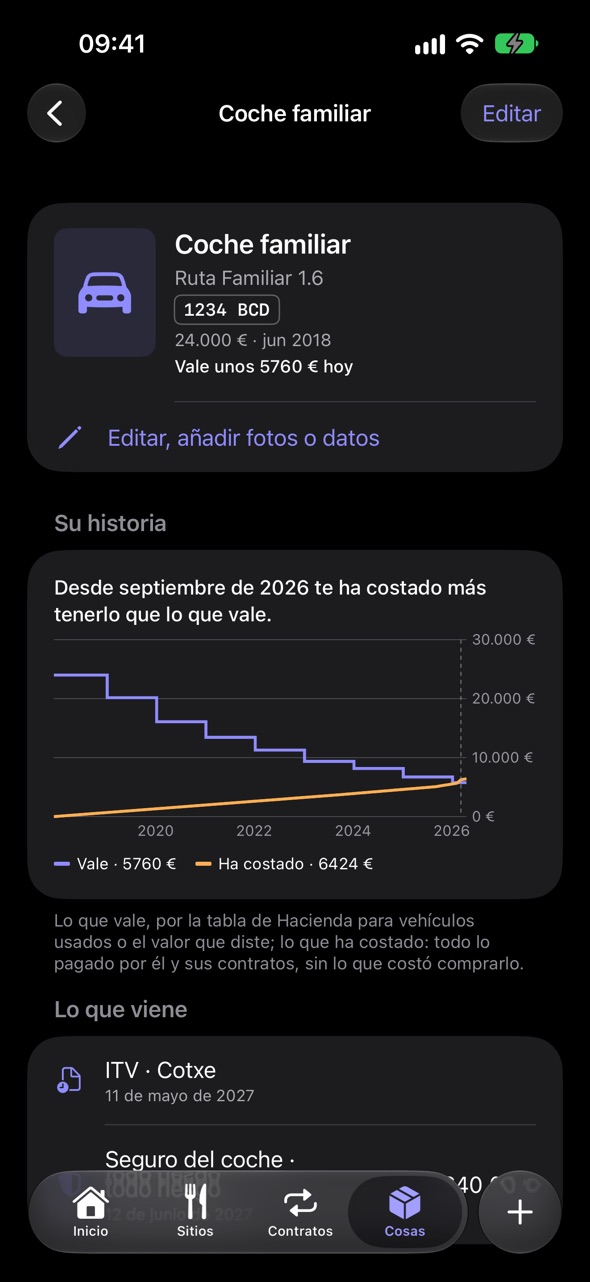
What's the car worth today, and what has keeping it cost you? Tiquet estimates what each thing is worth, gathers what you spend on it and tells you since when keeping it has cost more than it's worth.
How
- In “Things”, tap + › “Add a vehicle” for the car or the motorbike: it asks for the “Number plate” and the “Frame number (VIN)”. In the list, each vehicle shows its plate.
- Opening a thing shows its card to look at: only what has data appears. To change something or fill in what's missing, tap “Edit”: every field is there, the empty ones too.
- “Worth today” estimates it: a car or a motorbike with the Spanish tax office's table for used vehicles; anything else from its price and age, by what it is in “What it is” (phone, computer, furniture…). If you know what it's worth, from an appraisal or an offer, type it in “A value you know” and your figure wins.
- What a vehicle spends is given to it on its own: fuel or charging, tolls and parking, workshop and ITV, and road tax. It goes by the plate printed on the invoice; and if the household has a single vehicle, all of that is its.
- With two vehicles, the card tells you, for example “3 vehicle shops still without a vehicle”: tap it and choose “Whose?” for each. It's said once per shop, and its payments before and after go to that vehicle.
- On any receipt, “Spent on” says which thing the spending was for, or “None of my things”, or “Let Tiquet decide”. On a bank payment, touch and hold it and choose “Spent on…”.
- With Plus, the card shows “Its story” (what it's worth against what keeping it has cost since you bought it, and when the two cross), “What it costs” this year and since you bought it, “What comes next” in the next twelve months (renewals, instalments, road tax, ITV and other documents, the end of the warranty) and “This year, month by month”.
Tips
- With Plus, the card also says what protecting it costs a year against what it's worth today. At 10 % or more it also appears in “Where to spend less”, with the question for your insurer: what it would pay if it were written off, and what a lower cover would cost.
- The tax office's table leaves an 8-year-old car at 24 % of what it cost. The market often pays more: if you know a value, type it.
- Jewellery and watches aren't estimated, since they can keep or gain value: to see it, type their value yourself.
- Nothing is counted twice: saying which thing a payment was for doesn't change what “Home” adds up.
- The car's insurance or the phone's financing can belong to that thing: on the contract, “The thing it is for”.
Questions
Where does the car table come from?
It's the one Spain's tax office uses to value used vehicles for transfer tax: a percentage of what it cost by whole years of age. It's a reference, not an appraisal.
Tags, budget and saving
A tag brings together what belongs together, even when it arrives by different routes: “Trip to Rome” adds up the scanned hotel, the flight from the statement and the travel insurance. The budget tells you whether the month is going well.
How
- On a receipt, a contract or a thing, add a tag under “Tags”. From 1.3, typing shows your tags that match and Tiquet's own too (the groups on Home, such as Groceries). If you type nearly the same as one you have, it asks “Did you mean…” before making another; and “All” opens the whole list, searchable: “Made by you” and “Tiquet's (the groups on Home)”.
- Suggestions start with the tags you put on that shop before; a supermarket receipt is offered the groceries group.
- Bank payments get their tag on their own. The ones left without one wait in “Classify”: one tap tags every payment from that merchant, past and future.
- If something is filed wrong, “Review the classification” corrects it by merchant or by group, and it can be undone.
- In “Settings” › “Monthly budget”, set what you want to spend in a normal month, everything included. From 2.1, also from the “Budget” page on “Home”, which explains what you see.
- With Plus, in “Settings” › “Savings goals” (or in “Goals”, on “Home”) tap “New goal”: how much, by when and the words your bank puts on transfers to your savings pot.
Tips
- Each payment counts once in the tag: the receipt and its bank line are the same payment.
- Put one of Tiquet's tags on a receipt and it joins the same group on Home as your bank payments.
- The people in your household work as tags too: “everything of Marta's” is one screen.
- Tiquet never works out the budget from your income. It's one figure, not twenty.
Privacy and your data
Your receipts, contracts and statements stay on your device. There's no account, no connection to your bank and no servers of ours: we don't receive your statements or your amounts.
How
- In “Settings”, the “Your data stays with you” card explains where everything is and what uses a connection.
- To keep iPhone and iPad the same, switch on “Sync with iCloud” in “Settings” › “iPhone and iPad, in step”, on each device with your Apple Account. It uses your private iCloud, which the developer can't read.
- To take everything with you, “Settings” › “Backup and restore” › “Export everything”: a .zip with receipts, photos, policies, transactions and spreadsheets.
- To delete everything, on that page tap “Delete everything in Tiquet” and type DELETE. With iCloud on, it's also deleted from your other devices.
- To hide the amounts, touch and hold the total of the month's ticket on “Home”: every amount becomes •••. Hold it again to show them. Also in “Settings” › “Discreet mode”.
- From 2.0, “Settings” › “Lock with Face ID” (or Touch ID) makes Tiquet ask for it when it opens and each time you come back to it; your passcode always opens it too. It's off until you switch it on.
Tips
- These use a connection: your iCloud, if you switch it on; Apple Maps, with a place's name, an address or a coordinate; a company's website, once, for its logo; a short Google Maps link you paste into an address, once, to see where it leads; and the App Store for Plus.
- Face ID or Touch ID is checked by the system on the iPhone: Tiquet never sees your face or your finger. With the lock on, Siri, Shortcuts and the Apple Pay automation still work, and the widgets show ••• instead of the amounts.
- The backup isn't encrypted: keep it somewhere safe.
- Tiquet only asks for your location when you tap “I'm here now” or ask about places near you.
Free and Plus
Saving and finding is free for ever. Plus adds what helps you understand and spend less, with a single payment and no subscription.
How
- Free: receipts, warranties and returns with their reminders; contracts and insurance with theirs; “If something happens to me”; Watch; iCloud and the backup; Home, Places, Contracts and Things; 5 questions a day.
- Plus: “Where to spend less”, “In and out” and your accounts, new saving goals, “What's coming” for 12 months and “Horizon”, “The Month”, places from your bank and unlimited questions. From 1.1, “The basket” too. From 2.0, the home insurance inventory (the comparison with the contents sum and the PDFs) and what your car and your things cost.
- To try it, go to “Settings” › “Tiquet Plus” and tap “Try everything free for 14 days”. Nothing is charged and it doesn't renew by itself.
- If you like it, buy it once: €9.99, the launch price in Spain. On another device, tap “Restore purchases”.
Tips
- Nothing you save is ever locked. When the trial ends, the Plus features close and your things stay where they are.
- Plus works with Family Sharing: the purchase is shared, not your data. The trial is per person.
- With the sample data you see everything, Plus included, before you decide.
Questions
What happens when the 14 days end?
You carry on with the free features, with no charge. The goals you created stay visible and the places brought in from your bank stay in Places.
Missing something?
Tiquet is free on the App Store in Spain. If something doesn't work as you expect, or you miss a feature, write to us from the support page.